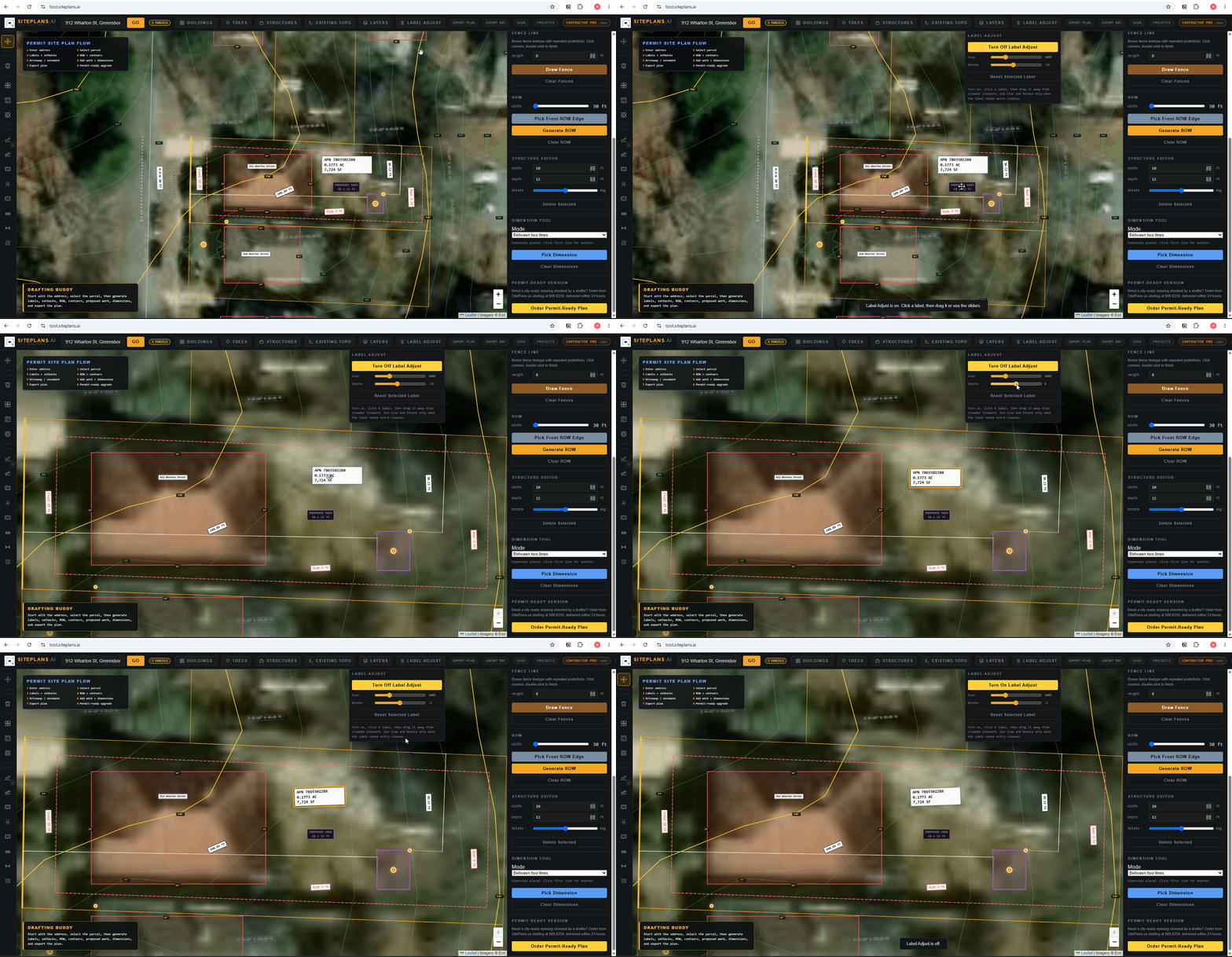
# How to Adjust Labels in SitePlans.ai
Every label your site plan generates — setbacks, dimensions, property lines, structures — can be repositioned once you know where this tool lives. This is the feature that turns a busy, overlapping drawing into something that actually reads clean.
Quick Answer
Click Label Adjust next to Layers in the top menu. A dropdown appears with a yellow Turn On Label Adjust button — click it, then click any label to move, resize, or rotate it.
Step-by-Step
1. Open the tool. Find Label Adjust in the top toolbar, next to Layers.
2. Turn it on. A dropdown appears with a yellow toggle button. Click it to activate label adjustment mode.
3. Select a label. Click any label on your plan — setback distances, dimension lines, structure descriptions, property line bearings, all of it becomes adjustable.
4. Move it. Drag with your mouse to reposition.
5. Resize it. Use the sliders to make a label bigger or smaller for readability.
6. Rotate it. Align the label to match the direction of the line or structure it's labeling.
When to Use This
Any time your plan starts looking cluttered — labels overlapping, text running into structures, numbers hard to read at print size. A city plan reviewer can flag a plan for readability alone, even when every required piece of information is technically present.
Common Mistakes
Skipping this on a busy lot. The more structures and lines on your plan, the more labels compete for space. Don't wait until export to notice it looks messy.
Forgetting to turn the tool off when you're done adjusting — it doesn't affect your plan negatively, but leaving it on can make normal clicking behave unexpectedly.
FAQ
Does this work on every label type?
Yes — setbacks, dimensions, property lines, and structure descriptions are all adjustable through this tool.
Will adjusting a label change its actual value?
No. You're only changing position, size, and rotation — the underlying data (the distance, the bearing, the dimension) stays accurate.
Can I undo a label move?
Reposition it again the same way, or turn the tool off and back on if something looks off.
Related Tools
- How to build a title sheet that does not get rejected
- How to clean up property line labels
- SitePlans.ai support center
Start Here
Create My Site Plan — Need help? Get support from SitePlans.us →